How to Duplicate a PDF Page Without Adobe (Free & Online)
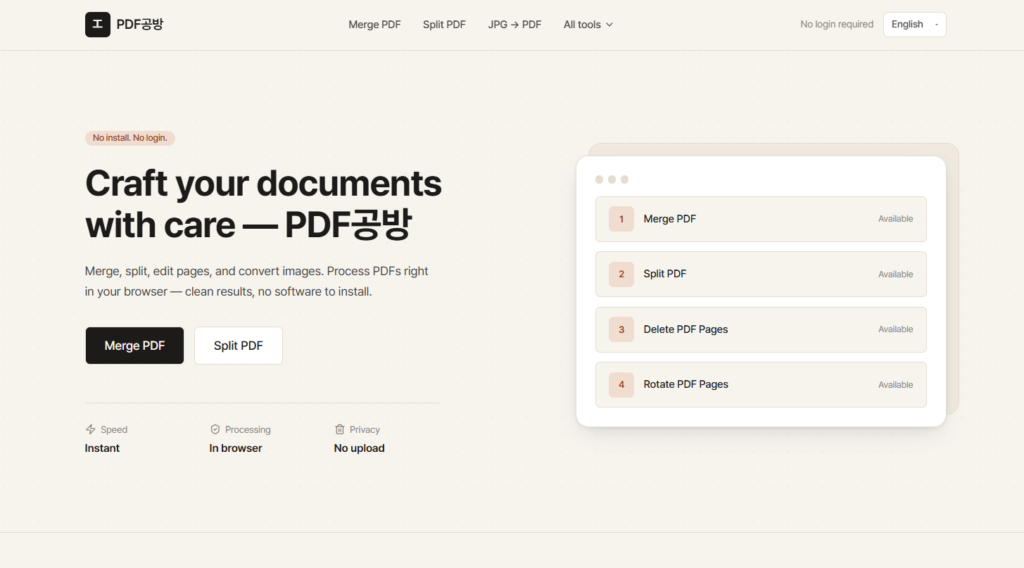
A few days ago, I needed to duplicate a page in a PDF.
It sounded like a simple task. Open the file, copy the page, save it, done.
Unfortunately, it wasn’t that simple.
Most of the solutions I found wanted me to install software, start a free trial, create an account, or subscribe to a PDF editor I would probably never use again.
The funny part is that I didn’t need advanced editing features. I wasn’t changing text, adding signatures, or redesigning the document. I just wanted to make an exact copy of one page.
After trying a few different options, I realized that duplicating PDF pages online is actually much easier than using traditional desktop software.
If you’re trying to do the same thing, here’s what I learned.
What Does “Duplicate PDF Page” Actually Mean?
Duplicating a PDF page means creating an identical copy of an existing page within the same document.
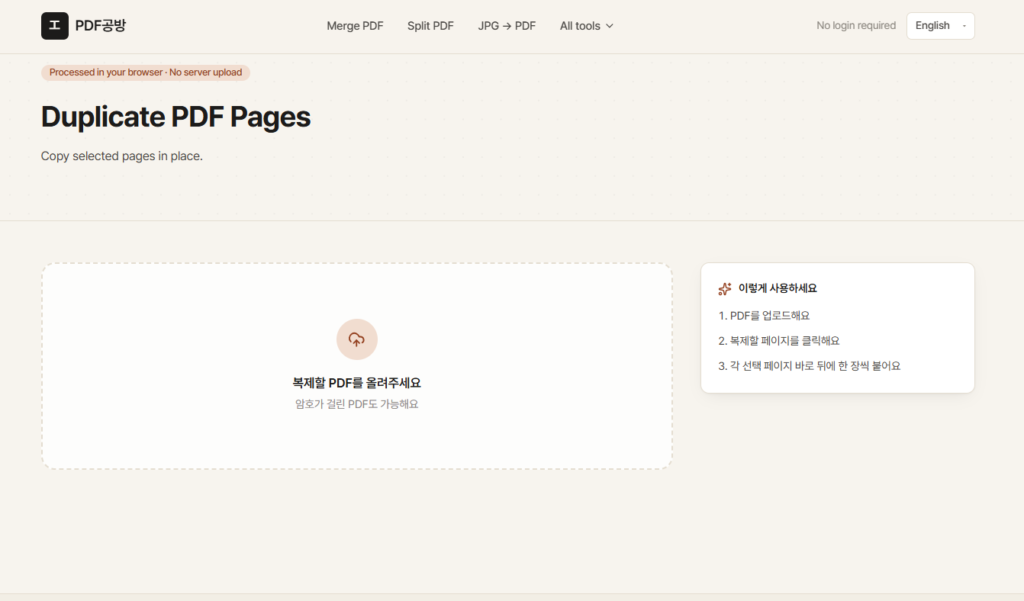
For example, let’s say your PDF looks like this:
- Page 1
- Page 2
- Page 3
If you duplicate Page 2, the file becomes:
- Page 1
- Page 2
- Page 2
- Page 3
Nothing changes on the copied page. The text, images, layout, and formatting stay exactly the same.
It sounds like a small feature, but it’s surprisingly useful.
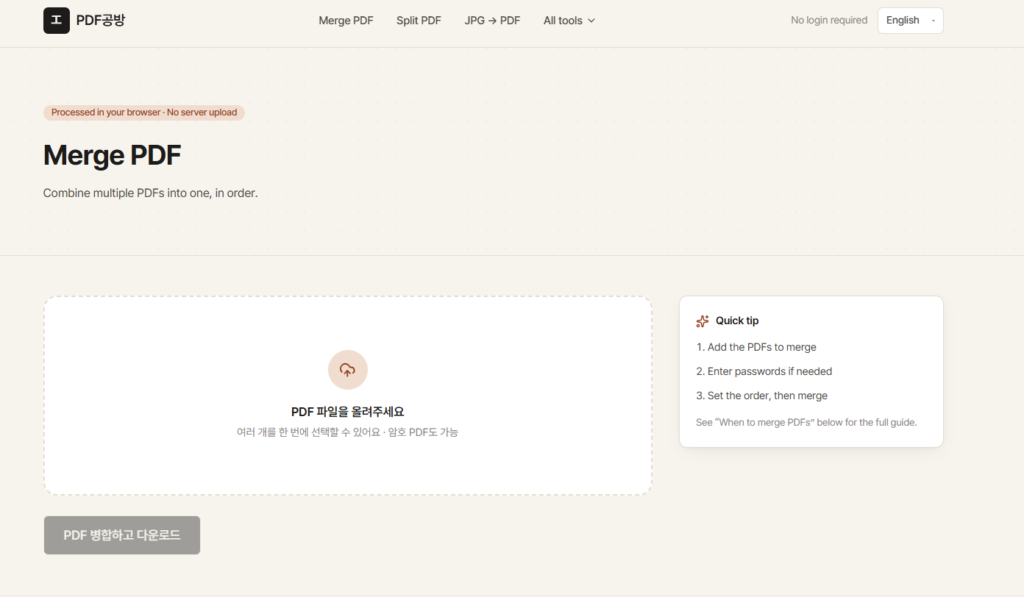
Situations Where I Actually Needed It
Before running into this issue myself, I honestly didn’t think much about PDF page duplication.
Now I notice situations where it would have saved time.
Repeating a Form
Many forms only contain one or two pages.
Instead of recreating those pages manually, it’s easier to duplicate them as many times as needed.
Contract Templates
If you’re working with documents that repeat the same section multiple times, duplicating a page is often faster than rebuilding the structure.
Printable Worksheets
Teachers and trainers frequently work with templates that need additional copies of certain pages.
A duplicate page solves the problem immediately.
Checklists
Project checklists, inspection sheets, and evaluation forms often require the exact same page several times in one document.
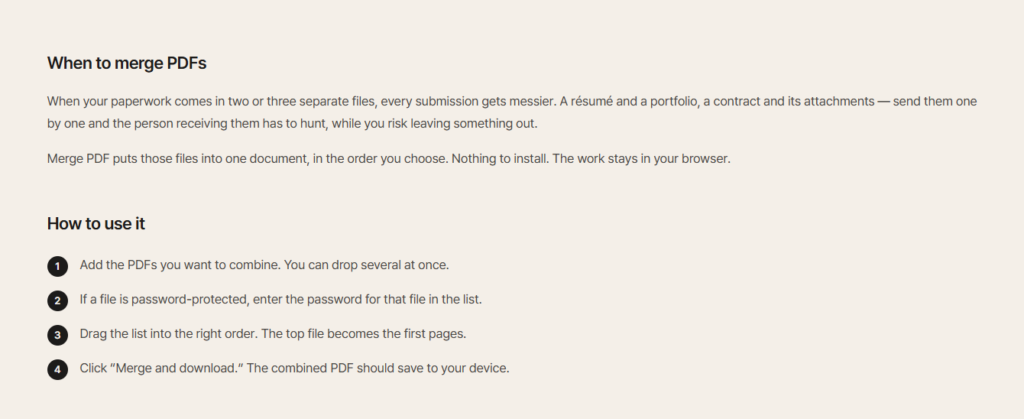
Why Most People Search for “Duplicate PDF Page”
Looking at search results, it’s clear that many users are searching for phrases like:
- duplicate pdf page
- duplicate pdf pages
- copy page in pdf
- duplicate pages in pdf online free
The reason is simple.
Most PDF editors focus on merging, splitting, or converting files.
Page duplication is a smaller feature, so it can be surprisingly difficult to find quickly.
A lot of websites explain everything except the one thing you’re trying to do.
That’s probably why these search terms keep showing up.
Users aren’t looking for a complete PDF tutorial.
They just want to copy a page and move on.
Do You Really Need Adobe Acrobat?
For some professional workflows, Adobe Acrobat absolutely makes sense.
However, if your goal is simply to duplicate a PDF page, it’s often more software than you actually need.
For occasional edits, many users don’t want to:
- install a desktop application
- create an Adobe account
- start a trial
- pay a subscription
That’s especially true when the task takes less than a minute.
In many cases, an online PDF tool provides exactly what’s needed without the extra steps.
How to Duplicate PDF Pages Online
The process is usually straightforward.
Upload the PDF
Start by uploading the document.
Find the Page You Want to Copy
Most tools display page thumbnails, making it easy to locate the right page.
Duplicate the Page
Use the duplicate option to create a copy of the selected page.
Adjust the Order if Necessary
You can usually move the duplicated page to a different position within the document.
Download the New PDF
Once everything looks correct, save and download the updated file.
That’s it.
No complicated editing process.
No learning curve.
No unnecessary software.
What I Like About Browser-Based PDF Tools
After trying both desktop software and online tools, the biggest advantage is convenience.
I can open a browser, upload a file, make the change, and download the result.
There’s no update process.
There’s no installation.
There’s no setup.
And when I’m only editing a PDF once or twice a month, that’s exactly what I want.
Another benefit is cross-device compatibility.
Whether you’re using a Windows laptop, MacBook, Linux workstation, tablet, or phone, the workflow remains almost identical.
Things to Check Before Using Any PDF Tool
One thing worth mentioning is privacy.
Whenever you’re uploading PDF documents online, it’s a good idea to check:
- whether the service uses secure file transfer
- whether uploaded files are automatically deleted
- whether a sign-in is required
- whether usage limits exist
For personal documents and non-confidential files, this usually isn’t a concern.
For sensitive business documents, it’s always smart to review the service’s file handling policy first.
Final Thoughts
I originally expected duplicating a PDF page to take about ten seconds.
Instead, I spent more time searching for the feature than actually using it.
Once I found a tool that focused on simple PDF operations, the process became incredibly easy.
If you’re looking for a way to duplicate PDF pages online without installing software or paying for a full PDF editor, browser-based tools are often the fastest option.
Sometimes the best solution isn’t the most powerful one.
It’s simply the one that helps you finish the task and get back to work.